How to Replace an Old Quoting System Without Retyping Anything
Replacing an old or custom quoting system? Turn accepted quotes into invoices without retyping, print delivery notes from the same record, keep your history searchable and get your data out as CSV.
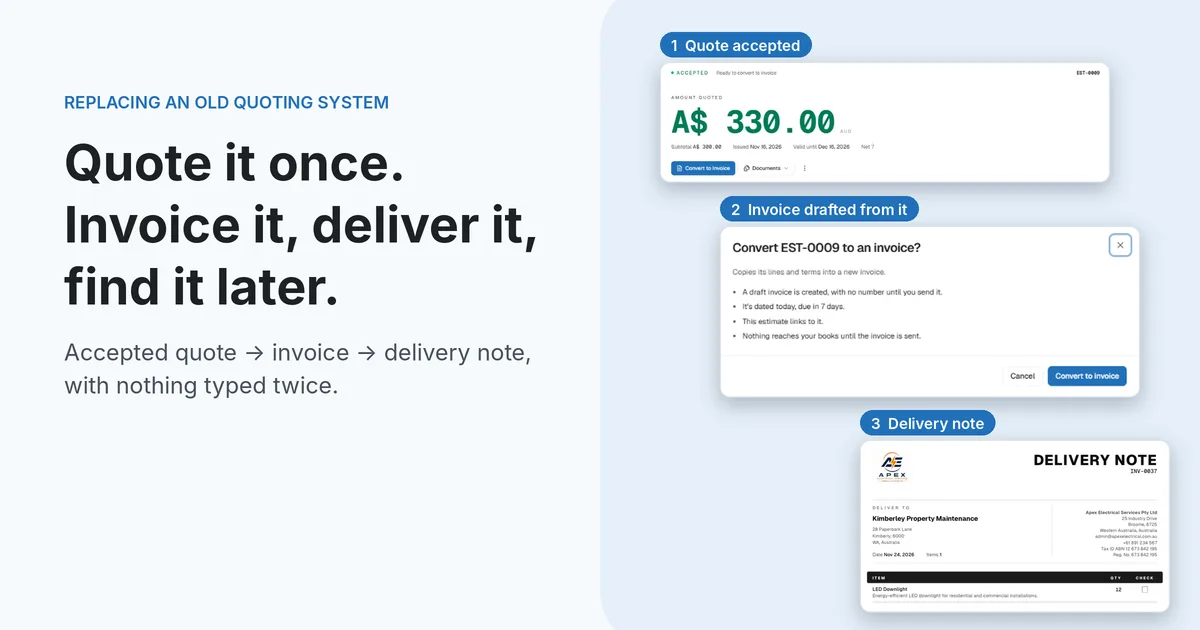
A supplier who has quoted on the same in-house system for ten years usually hits the same wall. The quote gets built in one place. Someone then retypes it as an order, and someone else retypes it as an invoice. Finding what a customer was quoted last spring means asking the one person who knows how the old system works.
If that sounds familiar, here is the short answer. Replace your quoting system with one where the accepted quote becomes the invoice, and the delivery paperwork prints from that same record. Bring over your product list, your customers and the quotes that are still open. Archive the old history instead of migrating it. Make sure your data can come out again as CSV files. Everything below explains how to do that without losing a week of trading.
Why old quoting systems turn into a problem
Custom quoting tools are usually built for a good reason. Off-the-shelf software didn't fit, so someone built something that did. Years later, the same problems show up:
- The retype tax. Every time a quote moves to the next document, someone keys it in again. Each retype is a chance to drop a line, change a quantity or charge last year's price, and nobody notices until the customer queries the invoice.
- Numbers drift apart. When the quote, the order and the invoice live in different places, their totals stop matching. Then you spend time working out which one is right.
- History is trapped. The old quotes are in there somewhere, but searching them depends on one screen, one login or one person.
- Your data has no way out. If the system can't export to a format anything else can read, your sales history is effectively owned by the software.
None of this is a reason to keep paying someone to patch the old system. All of it is a checklist for choosing the replacement.
What a replacement actually needs to do
Before you look at any product, write down what the new system must do. For most suppliers and trades businesses it comes down to six things:
- Quote from a price list. Lines should come from your catalog of products and services, so prices and descriptions are consistent and nobody types them freehand.
- Let the customer accept in writing. An emailed PDF that says "looks good" in a reply is weak evidence. A recorded acceptance on the exact items and total is much stronger.
- Turn the accepted quote into the invoice. No retyping. The invoice should carry the same lines and terms, and link back to the quote it came from.
- Print the delivery and job paperwork from the same record. Your warehouse and your installers need a document with quantities but without prices.
- Find any job later. You should be able to search by quote number, customer, project or subject, and see every quote and invoice for one customer in one place.
- Give your data back. Your sales records should export as plain CSV files you can open in a spreadsheet or hand to your accountant.
If a product misses item 3 or item 6, keep looking. Those two are the ones that bring the original problem straight back.
Don't migrate years of old quotes
This is where most switches go wrong. It is tempting to move every quote you have ever written into the new system so it all feels "complete". It rarely works and it almost never pays off. Old quotes carry old prices, old product codes and customers who no longer exist. Mapping them field by field is slow, and the result is a new system full of data nobody trusts.
A cleaner cutover looks like this:
- Export and archive the old system. Pull everything out as CSV or PDF and store it read-only in a shared folder. If someone needs a 2021 quote, it's there.
- Bring over what's live. That means your product and service list, your active customers, and only the quotes that are still waiting for an answer.
- Pick a cutover date. From that day, every new quote starts in the new system. Don't run both in parallel for new work, or you'll be checking two places forever.
- Let history build naturally. Within a few months, everything your team actually looks up will be in the new system.
If you are moving your whole set of books at the same time, our guide to switching accounting software covers opening balances and the order to do things in.
How it works in Papertools: one record from quote to delivery
Papertools is accounting software for small businesses, with estimates, invoices and real double-entry books in one place. Here is the quote-to-delivery flow as it actually runs in the app.
1. Quote from your catalog, and see every quote at a glance
You build an estimate from your saved products and services, and send it by email, WhatsApp, a shared PDF or a public link. The Estimates list shows every quote with its status: Draft, Sent, Viewed, Accepted, Rejected, Expired or Archived. Search works by number, customer, project or subject, so "what did we quote Northview last month?" takes seconds, not a phone call.
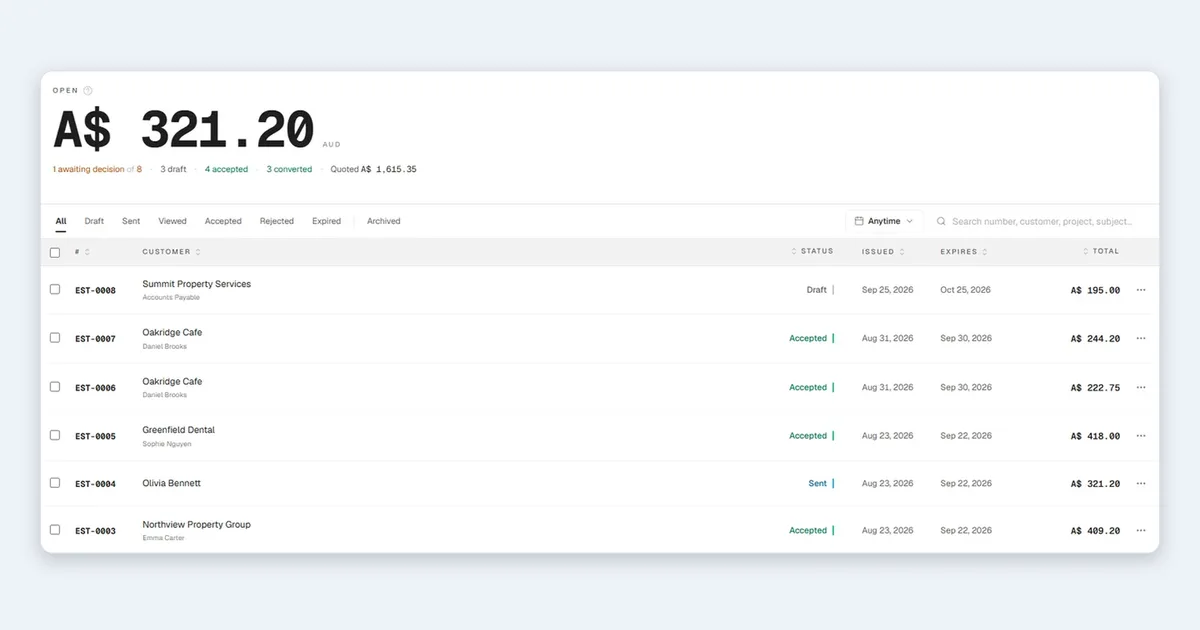
Estimates are unlimited on every plan, including the free one.
2. The customer accepts online, and you keep a record
The email your customer receives has the PDF attached and a link to accept online. They review the items and total, type their full name and click Accept estimate. Papertools records their name, IP address and the time. That is a far better record of what was agreed than a reply that just says "go ahead".
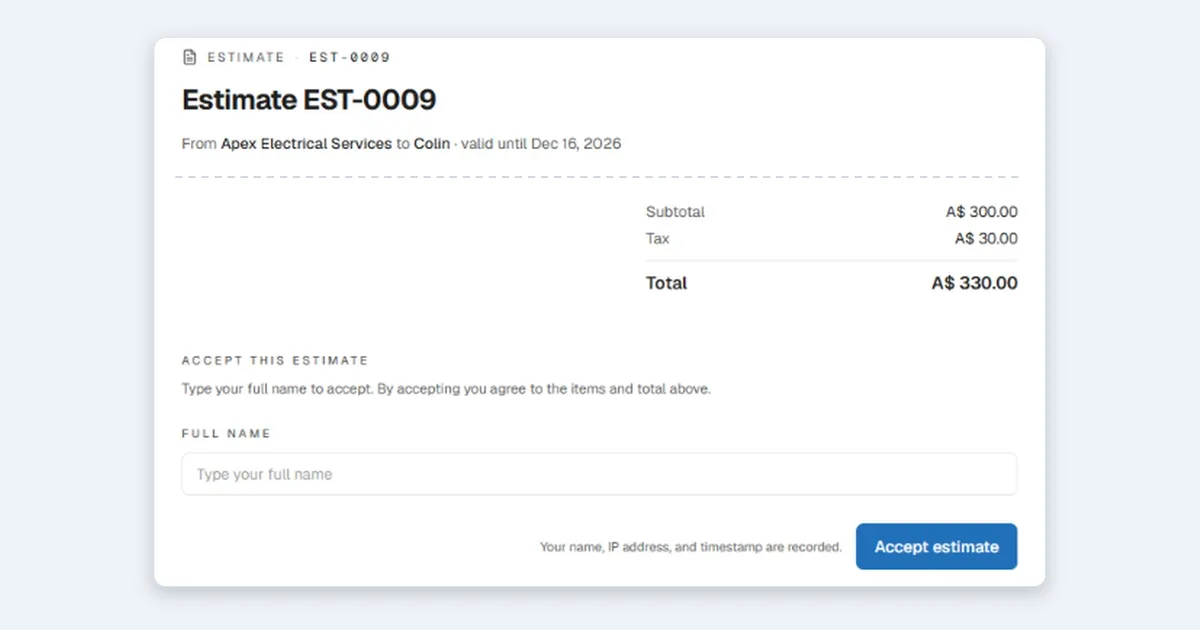
When a quote is accepted, you get a notification. Estimates don't send automatic reminders. The valid-until date is what creates the urgency, and you can resend or follow up yourself whenever you choose. Our guide on how to follow up on a quote without being pushy has the wording.
3. Convert the accepted quote to an invoice without retyping
One click on Convert to invoice copies the estimate's lines and terms into a new draft invoice. The draft gets no number until you send it. The estimate links to the invoice, and nothing reaches your books until the invoice is actually sent. This is the step that removes the retype tax.
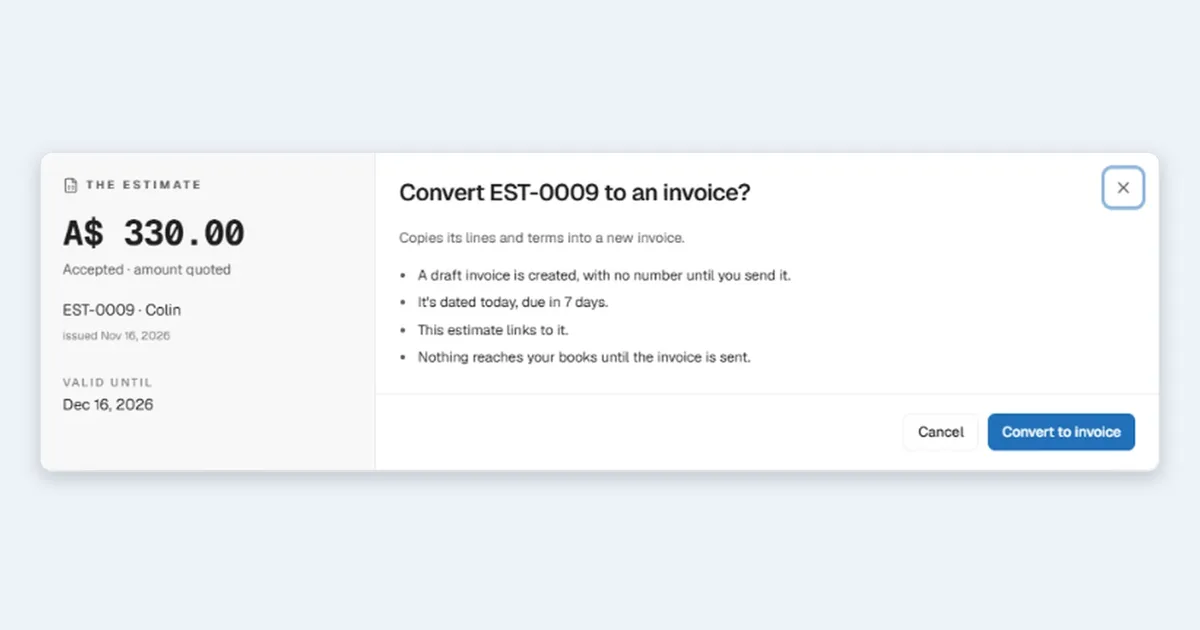
The draft invoice shows where it came from, next to its payment terms and reminder setting. Months later, anyone can trace an invoice back to the exact quote the customer accepted.
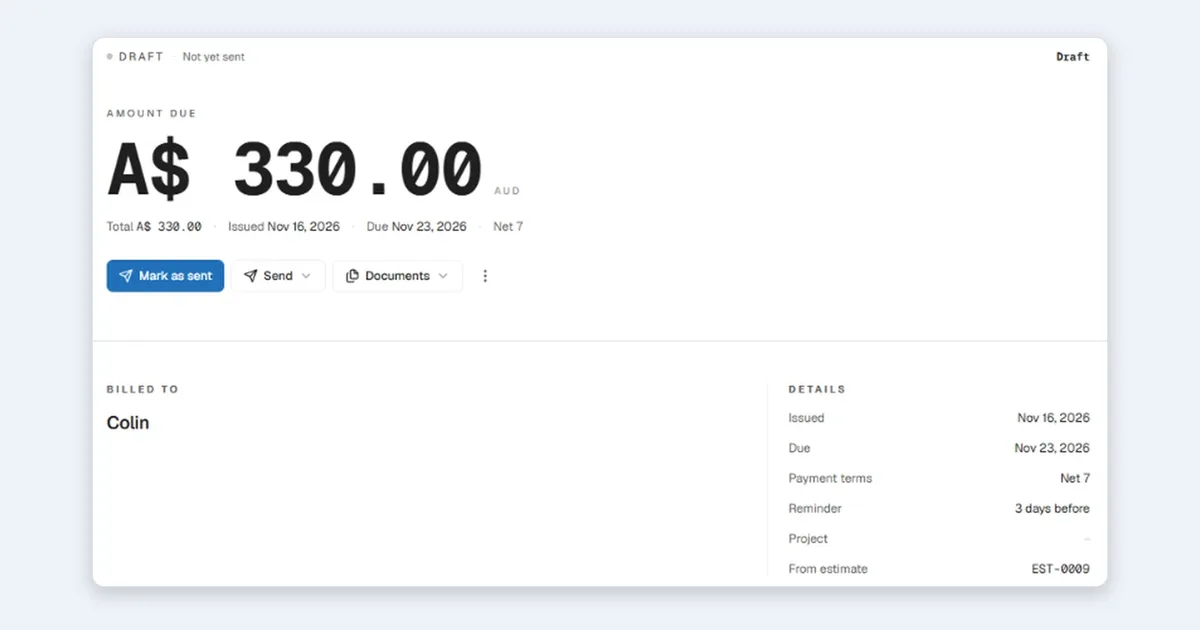
Unlike the quote, the invoice can send a courtesy reminder before it's due and automatic overdue reminders after.
4. Print the delivery note and work order from the same invoice
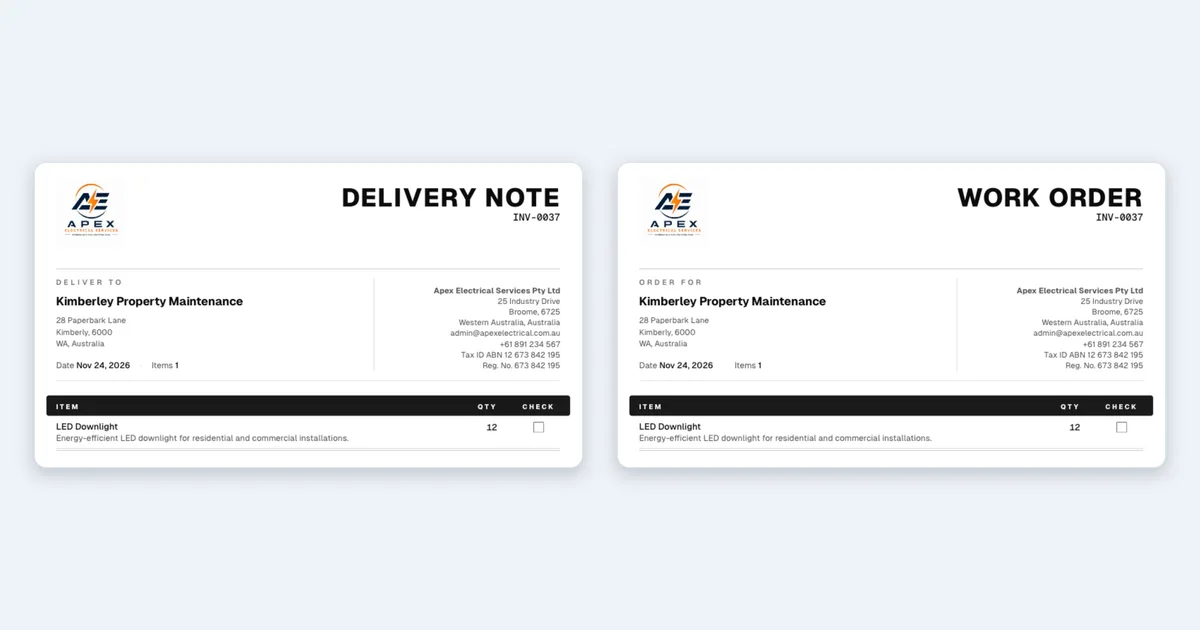
The invoice's print menu gives you two more documents without creating anything new: a delivery note for the customer and a work order for your team.
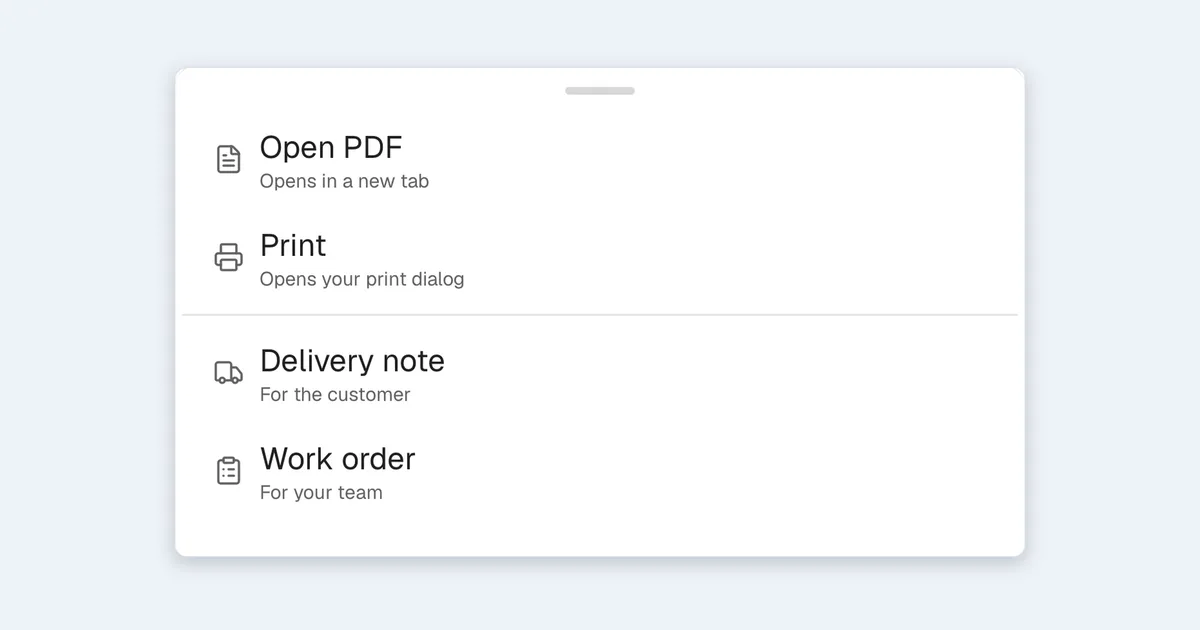
Both carry the items and quantities with no prices. The delivery note has a "Received by" line for the customer's signature, and the work order has a "Completed by" line for whoever did the job. The person loading the truck and the person sending the bill are working from the same record, so what was delivered matches what was invoiced.
5. Find any customer's history in one place
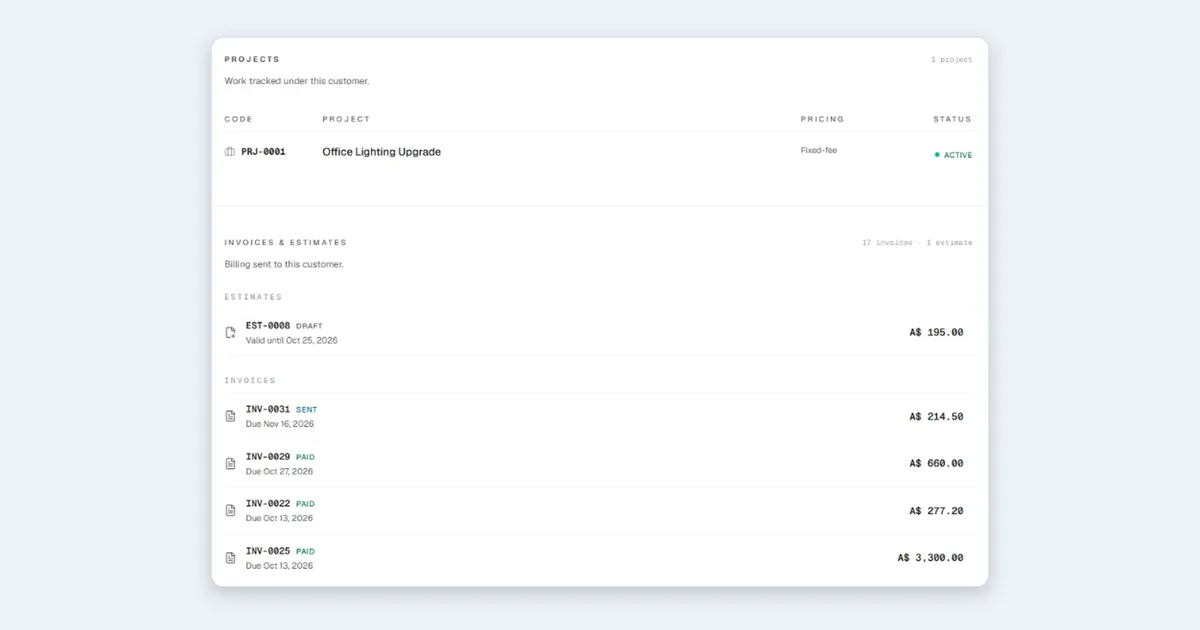
Every customer has a page showing what they owe and how overdue it is, their projects, and every estimate and invoice you've sent them. When a long-standing account calls about an old job, you open their page instead of searching three systems.
6. Your data comes out whenever you want it
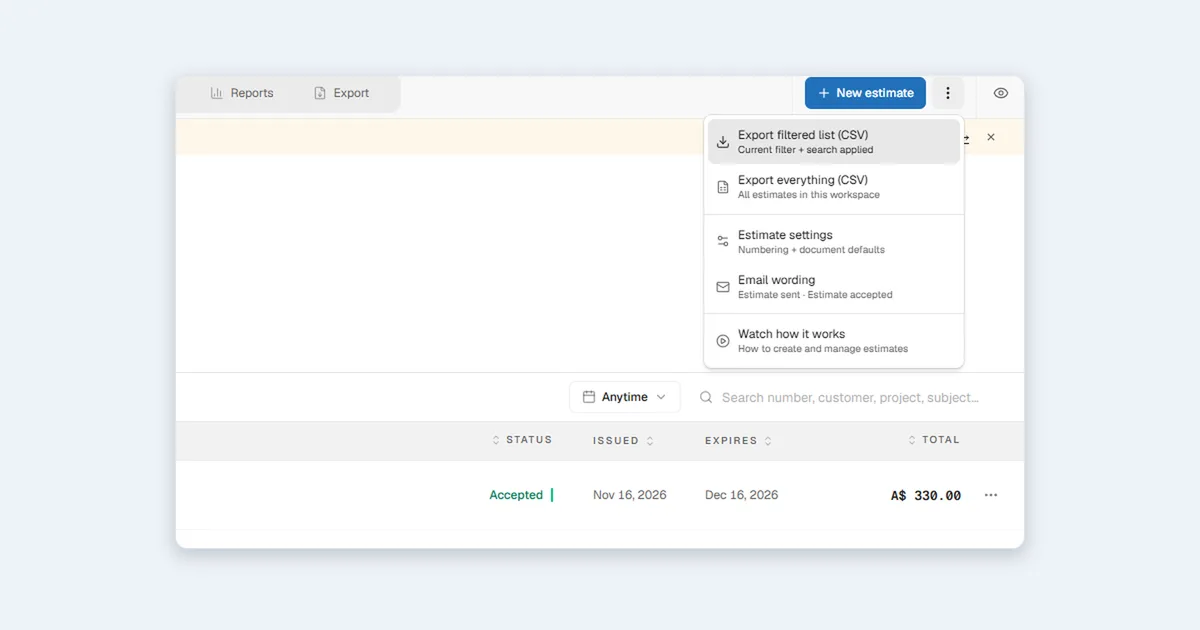
Every list in Papertools exports to CSV from its menu. On Estimates you can export the filtered list, with your current filter and search applied (every accepted quote this quarter, for example). Or you can export every estimate in the workspace. Invoices, sales receipts, payment receipts and credit notes work the same way. Quote history, the thing that was trapped in the old system, becomes a spreadsheet whenever you need it.
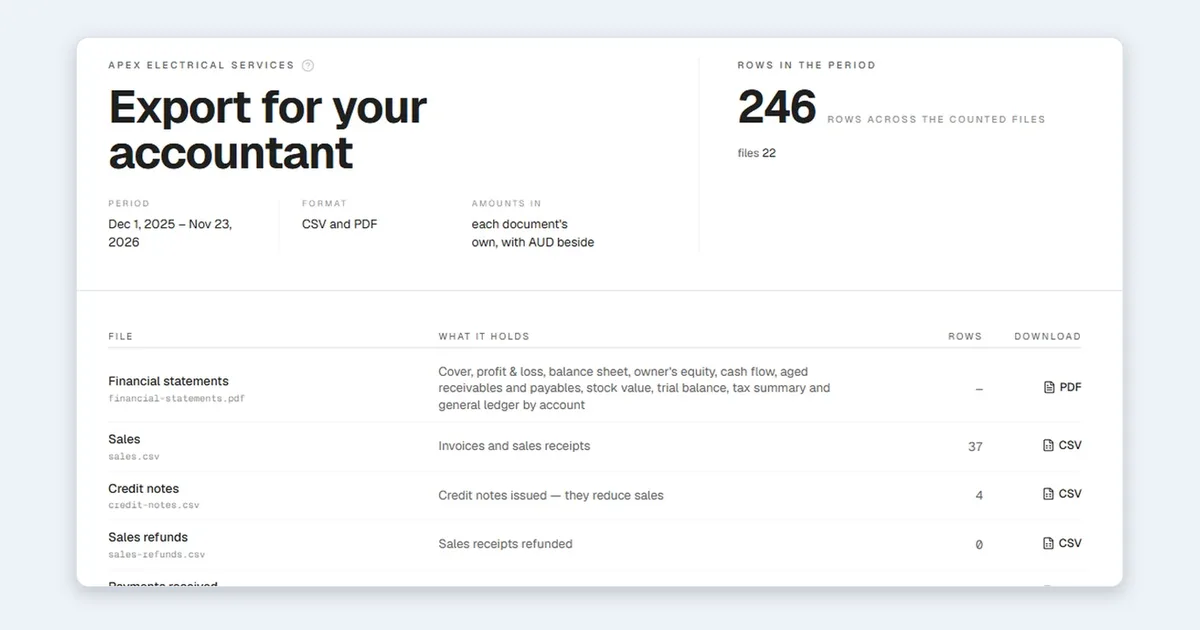
For your accountant, there's a separate export. It bundles a whole period into one ZIP of CSV files and a PDF of financial statements. The files cover sales, credit notes, payments in and out, customer deposits, bills, expenses, journals, write-offs, the chart of accounts, the trial balance and the general ledger. It's on the free plan. Your records are never locked inside Papertools, which is exactly what you wanted from the old system and didn't get.
For what to send and when, see what your accountant needs every quarter and at year end.
Where Papertools isn't the right fit
Being clear about the limits saves you finding them after you've switched:
- There is no separate sales order document. The accepted estimate is your record of what was agreed, and the delivery note and work order print from the invoice. If your warehouse works from formal orders that exist for days before anyone bills, check that this matches how you run things.
- Lines are added one at a time from your catalog. If customers send you orders with 100+ lines in a spreadsheet, there is no bulk paste today.
- Old quotes aren't imported. That is consistent with the cutover advice above, but if you need years of quote history searchable inside the new system, plan for the archive.
- Free-plan invoices are capped each month. Estimates are unlimited, but sending invoices on the free plan has a monthly limit. Our pricing page has the current numbers.
What this won't fix
A new system removes retyping. It doesn't fix the quote itself. If your price list is out of date, the new system will quote the wrong price faster. Before cutover, spend an hour making sure your catalog prices, units and descriptions are right.
It also won't fix an approval problem. If big quotes go out without a second look today, they'll go out the same way tomorrow. Decide who reviews quotes over a certain value, and make that part of the routine.
Frequently asked questions
Can I convert a quote to an invoice without retyping it? Yes. In Papertools, an accepted estimate converts to a draft invoice with the same lines and terms, linked back to the estimate. You review it and send it.
How do customers accept a quote online? They open the link in the estimate email, check the items and total, type their full name and click Accept estimate. Their name, IP address and the time are recorded.
Do I need a separate sales order between the quote and the invoice? Not in Papertools. The accepted estimate records what was agreed, and the delivery note and work order print straight from the invoice.
Should I import all my old quotes into the new system? Usually not. Archive the old system's export read-only, bring across your catalog, customers and open quotes, and start new work in the new system from a fixed date.
Can I get my data out again later? Yes. Every list in Papertools, estimates included, exports to CSV, either filtered or in full. A separate accountant export bundles a whole period into one ZIP of CSV and PDF files, on every plan including the free one.
Where to go next
- Estimate, invoice or receipt? Which document to send and when: the difference between the three documents in this flow
- How to follow up on a quote without being pushy: what to send after the quote goes out
- How to switch accounting software: moving your books, not just your quoting
- What accounts payable needs on an invoice: getting paid by business customers on the first attempt
- Send an estimate and convert it to an invoice: the step-by-step Help guide
This article is general information, not legal, tax or accounting advice. Requirements for quotes, invoices and record keeping vary by country, so check what applies to your business with a qualified professional.