How to Switch Accounting Software Without Losing Your History
Switching accounting software? Learn what to bring across, what to leave behind, and how to set opening balances so nothing gets lost.
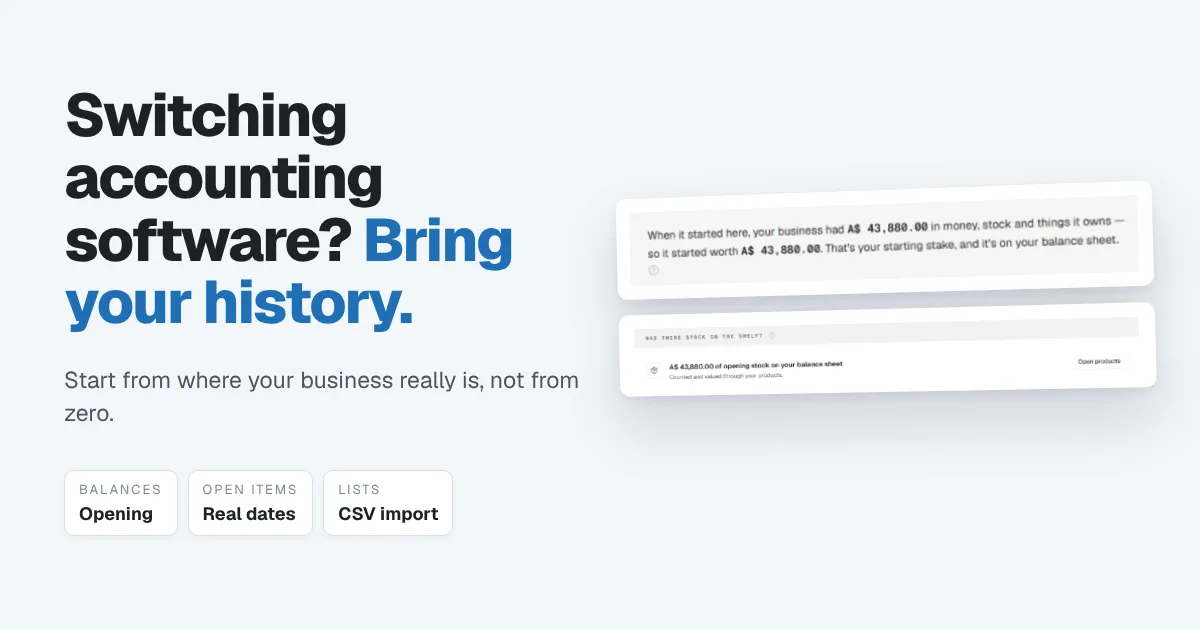
Most small businesses put off switching accounting software for the same reason. It isn't the price of the new software, and it isn't learning a new screen. It's the fear of losing history: the unpaid invoices, the balances, the years of records, and the nagging worry that your numbers won't add up on the other side.
That fear is reasonable, but the switch is much smaller than it looks. You don't need to move every transaction you've ever recorded. You need to move your starting point, the things still open on the day you switch, and your lists. Everything older stays safely archived. This guide shows how to do it step by step.
The short answer: pick a clean cutover date, export your reports and lists from the old system, then bring three things into the new one: your opening balances on that date, every invoice and bill still unpaid on that date (with their real dates), and your customer, supplier and product lists. Keep your old records archived for reference. Don't try to re-enter years of past transactions.
The biggest challenge isn't the software, it's the history
When people describe a switch that went badly, the story is usually the same. They tried to move everything. Every invoice from the last three years, every payment, every expense, all retyped or imported into the new system. Halfway through, the numbers stopped matching, the deadline came and went, and the old and new systems both ended up half used.
The fix is to change what "moving" means. Your new software doesn't need your whole past. It needs to know where your business stood on one specific day, so its reports start from the truth instead of from zero. Your past stays in your old records, exported and stored, where your accountant can still find it.
What to bring across, and what to leave behind
| Bring into the new software | Leave in your old records |
|---|---|
| Bank and cash balances on the cutover date | Every past transaction |
| Unpaid customer invoices, with their real dates | Invoices already paid |
| Unpaid supplier bills, with their real dates | Bills already paid |
| Loans still owed | Old reports (export and keep them) |
| Customer deposits you're still holding | Closed projects |
| Equipment and vehicles the business owns | Old document templates |
| Stock on the shelf and what it cost | Superseded price lists |
| Customer, supplier and product lists | Inactive customers and suppliers |
How to switch accounting software, step by step
1. Pick a cutover date. Choose the first day of a month, or better, the start of a quarter or financial year. A clean date means your tax periods and reports don't straddle two systems. Avoid switching in the middle of a tax period if you can.
2. Export everything from your old system first. Before you cancel anything, export and save:
- A balance sheet and a profit and loss report as at the day before your cutover
- A trial balance on the same date, if your system has one
- Aged receivables (who owes you) and aged payables (who you owe)
- Your customer, supplier and product lists
- Copies of your invoices, bills and reports for past years
Save them somewhere permanent. Many subscriptions limit or remove access once you cancel, and your accountant or a tax office may need those records years from now.
3. Bring your lists across. Customers, suppliers and products usually come across from a spreadsheet (CSV) export, so you don't have to type them in again. Tidy them as you go: drop people you haven't dealt with in years, and fix spelling and duplicate entries.
4. Enter your opening position. As at the cutover date, record what was in each bank account and in cash, any loans still owed, any deposits customers had paid for work not yet done, the equipment and vehicles the business owns, and the stock on the shelf with what it cost.
5. Recreate what's still open. Enter every unpaid invoice and unpaid bill with its real original date and amount. That way your aging reports, reminders and payment matching all work from day one, and a customer who pays an old invoice next week gets matched to the right one.
6. Check it ties out. Compare the new system's balance sheet on the cutover date with the one you exported from the old system. Bank, receivables, payables, loans and stock should match. If they do, you've switched.
7. Use the new system for everything from the cutover date onward. Don't keep entering transactions in both. Running two systems in parallel is how numbers drift apart.
A worked example
A small electrical contractor switches on November 1. On the day before, their old system shows:
| Item | Amount |
|---|---|
| Bank balance | $18,400 |
| Company van (its current value) | $22,000 |
| Stock on the shelf (at cost) | $12,500 |
| Unpaid customer invoices (4) | $3,210 |
| Unpaid supplier bills (2) | −$1,180 |
| Van loan still owed | −$9,000 |
| Customer deposit held for a job not yet done | −$1,500 |
| What the business is worth on the day | $44,430 |
They enter those as their opening position, recreate the four invoices and two bills with their original dates, and import their customer and product lists. Their new balance sheet on November 1 shows $44,430, the same as the old one. Nothing from the previous three years was retyped, and none of it was lost: it's all in the exported records.
Mistakes that make a switch painful
- Trying to move every past transaction. It takes weeks and rarely ties out. Bring your opening position and open items instead.
- Cancelling the old subscription before exporting. You may lose access to records you're required to keep.
- Starting the new system from zero. Your reports will show a business with no money, no stock and no debts, and every figure after that will be off.
- Forgetting customer deposits. Money paid in advance for work you haven't done yet isn't income yet. Leave it out, and both your profit and your liabilities are wrong.
- Entering open invoices with today's date. They'll look current when they're overdue, and your aging report and reminders won't reflect reality.
How Papertools helps you switch
Papertools is built for businesses that already exist. Starting position, in Settings, walks you through your opening position in plain questions, not journal entries: what was in your accounts, whether the business owed money on a loan, whether you'd put your own money in, whether customers had paid you before you'd done the work, what the business owns and works with, whether there was stock on the shelf, and who owed whom.
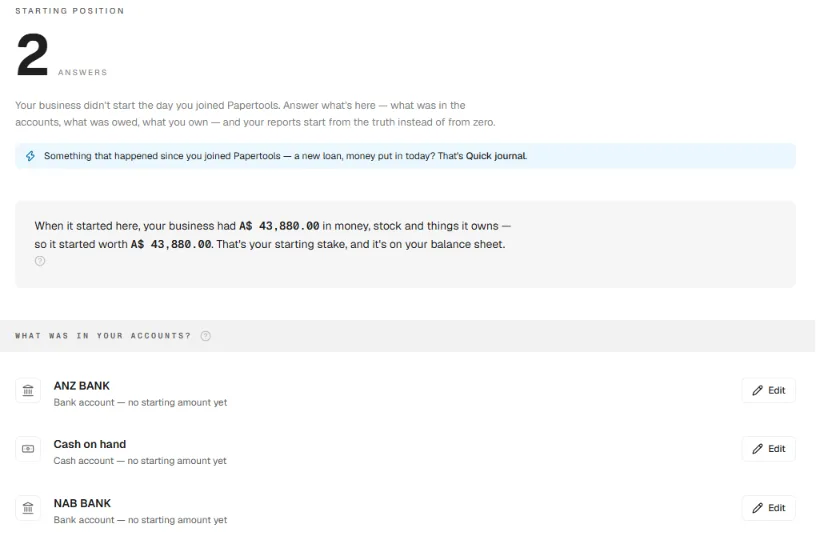
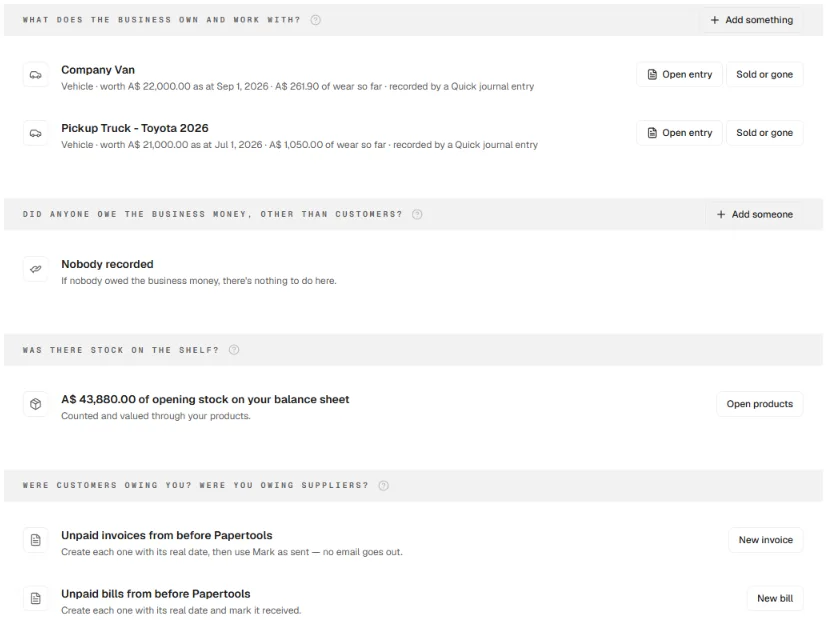
As you answer, Papertools shows your starting stake, what the business was worth when it started here, and puts it on your balance sheet. Each answer explains what it does. Adding a loan, for example, notes that it doesn't add money to any account, because the balances you entered already include it; it only records that the money is owed back. Equipment and vehicles are entered with what they're worth today and how many years they'll keep working, and Papertools spreads the cost as a small monthly entry from then on. Opening stock is counted and valued through your products.
For unpaid invoices from before you joined, create each one with its real date and choose Mark as sent, so it's recorded without an email going to your customer. Unpaid bills are entered with their real date and marked received.
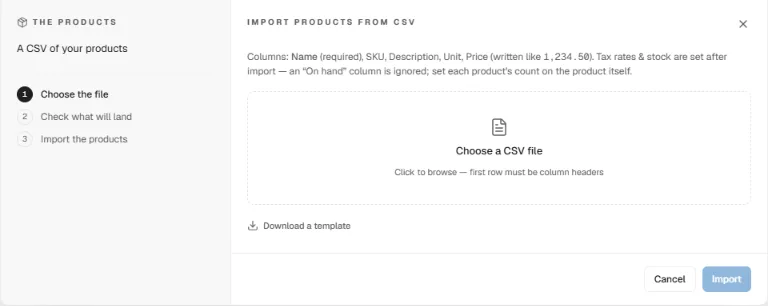
Your product list comes across from a spreadsheet in three steps: choose the file, check what will land, then import. A downloadable template shows the columns, and tax rates and stock counts are set on each product afterwards. To bring your other lists across, follow the import from a spreadsheet guide.
Bank history comes in the same way. Import your bank statement as a CSV or a PDF for any date range, and anything already in Papertools is skipped, so overlapping imports don't create duplicates. For anything that happens after you've switched, such as a new loan or money you put in, Quick journal records it in plain words, with no debits and credits to work out.
You can start free with Papertools, with no credit card, and set up your starting position before you commit to anything.
What this won't fix
- Records you didn't export. Once access to the old system ends, whatever wasn't saved may be gone. Export first.
- A starting point that was wrong to begin with. If the old balances were off, they'll be off in the new system too. Check them with your accountant before you switch.
- Your tax filing history. Returns already lodged stay with the old records. The new system starts from your cutover date.
- Habits. The switch works when everyone records in the new system from the first day. Agree a date and stick to it.
Quick answers
What is the hardest part of switching accounting software? Bringing your history across without losing accuracy. The solution is to move your opening balances and open items, not every past transaction.
When is the best time to switch accounting software? At the start of a month, quarter or financial year, so your reports and tax periods don't straddle two systems.
Do I need to move all my old transactions? No. Bring your balances as at the cutover date, plus anything still unpaid. Keep the older detail in exported reports.
What are opening balances? The amounts in each account on the day you start: money in the bank, what customers owe, what you owe suppliers, loans, stock and assets. They let your new reports start from where your business really is.
How do I bring unpaid invoices into new accounting software? Recreate each one with its original date and amount, and mark it as sent without emailing the customer again. That keeps your aging report and reminders accurate.
Can I switch accounting software in the middle of the year? Yes, as long as you enter your opening balances on the cutover date. A quarter or month start is easiest, especially for tax reporting.
Should I run both systems at the same time? Only long enough to check that the opening balances match. After that, use the new system for everything, or the two will drift apart.
Where to go next
- What a Free Accounting Plan Should Include (and When It's a Dead End) — choosing software you won't have to switch away from
- Moving Inventory and Invoicing Out of Excel (Without Losing the Count) — switching from spreadsheets instead
- A Client Paid Before the Invoice Was Ready: How to Record It — how customer deposits work
- How to Read an Aging Report — checking your open invoices after the switch
- Import from a spreadsheet — the Help guide for bringing your lists across
- How to catch up on bookkeeping — rebuilding months you missed from your bank statements
This article is general information about how bookkeeping works, not tax, accounting or legal advice. Rules differ by country and business. Check with a qualified adviser before acting on anything here. Papertools gives you the figures; the decisions stay with you.