Moving Inventory and Invoicing Out of Excel (Without Losing the Count)
Stock in one spreadsheet, invoices in another, and nobody trusts the count? How to move inventory and invoicing into one system, with a worked example.
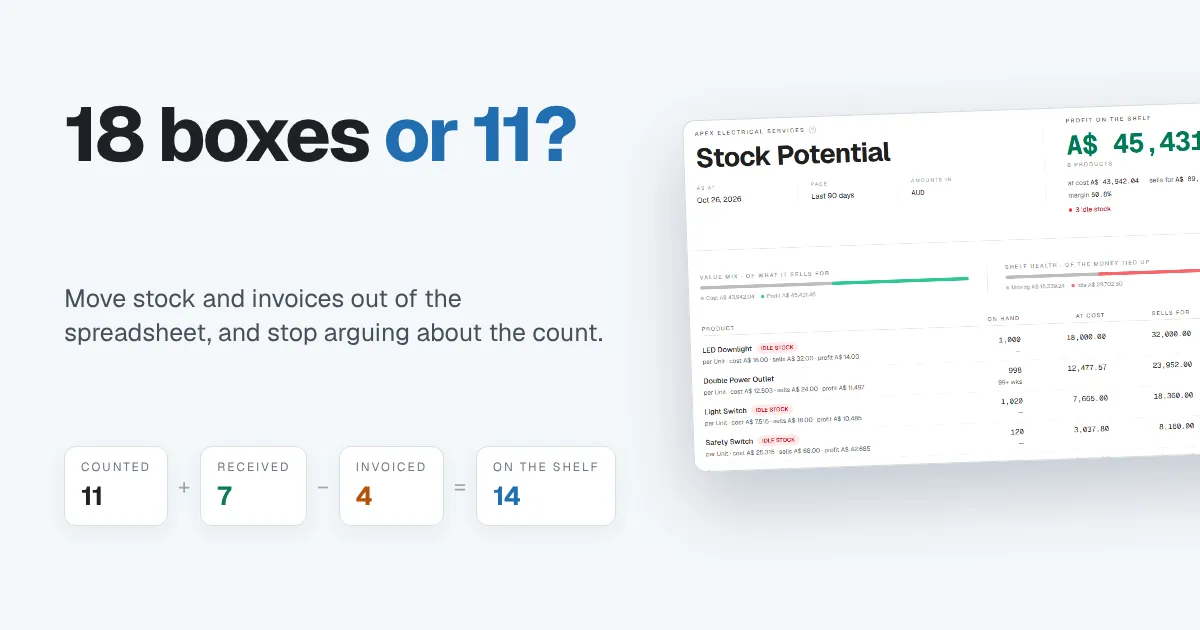
Every small business that sells physical products reaches the same point. Someone updates the stock spreadsheet on their laptop, someone else works from an older copy, and suddenly two people are arguing about whether there are 18 boxes on the shelf or 11. Meanwhile the invoices live in a different file, so nobody can say for certain what was sold, what was paid for, or what's left.
The spreadsheet hasn't failed because anyone did something wrong. It has failed because stock and sales are connected, and two separate files can't keep them connected. This guide covers when it's time to move, what to bring across, and how to make the switch without losing the count.
Why stock spreadsheets stop working
A spreadsheet is fine for one person counting one shelf. It struggles once any of these are true:
- More than one person updates it. Copies drift apart, and nobody knows which one is right.
- Invoices live somewhere else. Every sale has to be typed twice, once on the invoice and once in the stock sheet. One of them always gets missed.
- You need it away from the desk. A file on a Windows laptop doesn't help someone on a Mac at the warehouse, or on a phone at a customer's site.
- You want to know what you actually made. Profit on a sale depends on what you paid for that stock, and a stock count alone doesn't tell you that.
If two or more of these sound familiar, the spreadsheet is costing you more time than it saves.
What to look for in inventory and invoicing software
You don't need a warehouse management system to fix this. For a small wholesaler, retailer or trade business, five things matter:
- Stock moves when you invoice. Sending an invoice for four boxes should take four boxes off the shelf, with no second step.
- Stock arrives when you record the supplier bill. Receiving seven boxes should add seven, at the price you paid.
- It tracks what your stock cost. That's how you know the profit on each sale, not just the sale price.
- Everyone sees the same numbers. One shared record, opened in a browser on any device, instead of files sent back and forth.
- It warns you before you run out. A low-stock alert means you reorder before a customer is let down.
Check the free or entry plan carefully. Some tools advertise free invoicing and then put inventory behind a paid tier, which you only discover after you've set everything up.
A worked example
A small business supplies cleaning products to offices and cleaning companies. They pick one product to test: bin liners, sold by the box.
| Step | What happens | Boxes on the shelf |
|---|---|---|
| 1 | Count the shelf and enter it as opening stock, bought at $20 a box | 11 |
| 2 | Receive a delivery and record the supplier bill: 7 boxes at $23 | 18 |
| 3 | Invoice a cleaning company for 4 boxes at $35 | 14 |
Now the numbers argue for themselves. There are 14 boxes, and anyone can check that on their phone while the invoice is still unpaid.
The profit on that sale is clear too. Across the 18 boxes, the average cost is $381 ÷ 18 = about $21.17 a box. Four boxes cost about $84.67 and sold for $140, so the sale made about $55.33 before overheads. A spreadsheet would usually show $140 of sales and leave you guessing at the rest.
How to move without losing the count
The switch is where most people get stuck. Do it in this order:
- Pick a cutover date. Everything before it stays in the spreadsheet as history. Everything from it lives in the new system.
- Start with one product. Choose the one everyone argues about. Run one delivery and one sale through the new system before moving the rest.
- Count, then enter opening stock. Count the shelf on the cutover date and enter that as your starting quantity, with what you paid for it.
- Import your lists. Customers, suppliers and products usually come across from a CSV export of your spreadsheet.
- Keep the old file, unchanged. Don't delete it. Freeze a dated copy so you can check anything from before the cutover.
- Do a spot count after a month. Count three or four products and compare them with the system. If they match, you can trust it.
How Papertools handles inventory and invoicing
Papertools keeps stock, invoices and supplier bills in the same set of books, so a sale and the stock it uses are recorded once. It runs in the browser and installs as an app, so the same records open on Windows, Mac and phones.
You choose a tracking level for each product. For tracked products, recording a supplier bill adds stock at what you paid, and invoicing a customer takes it off. The cost of the stock sold moves to your profit and loss automatically, so the profit on each sale is real, not estimated.
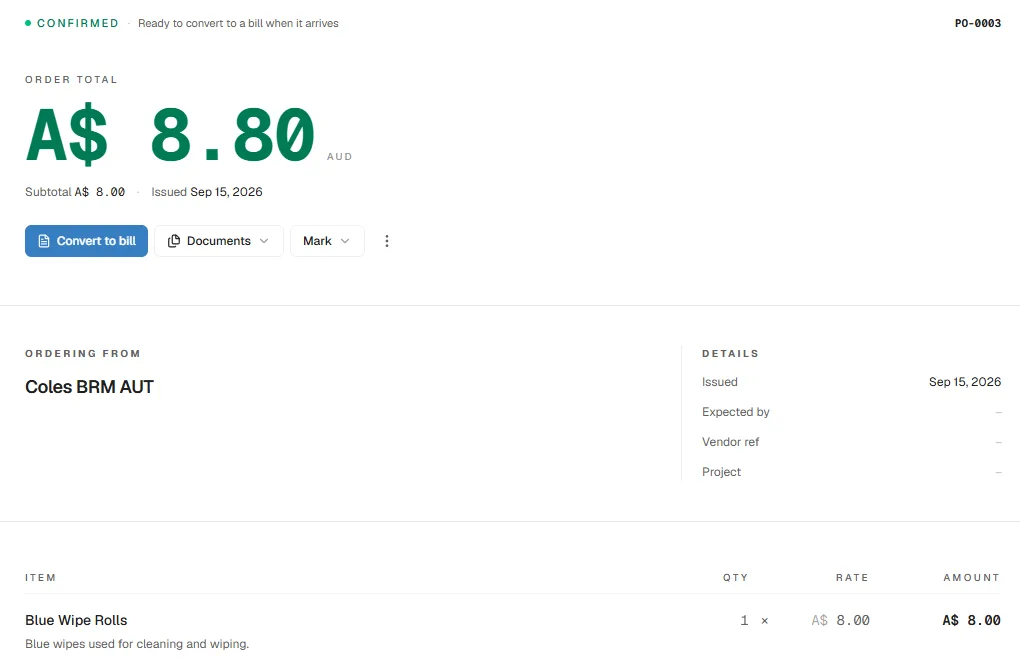
If you order before the goods arrive, raise a purchase order first. When the supplier's bill comes in, convert the order into a bill in one step and check the quantities against what was delivered.
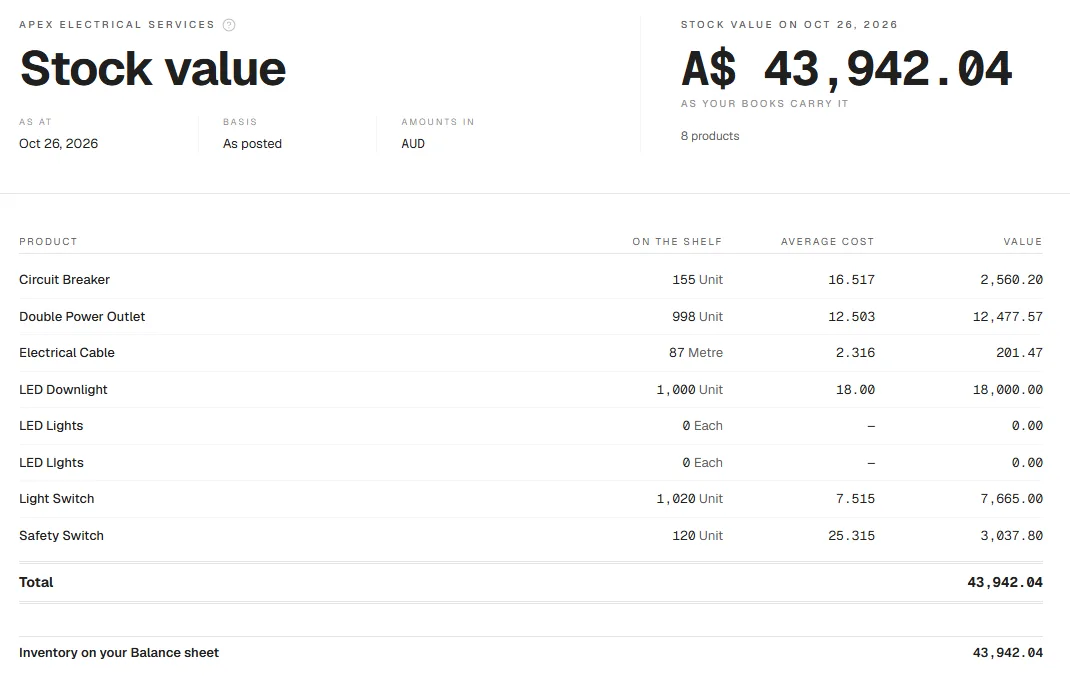
The Stock value report shows every product, how many are on the shelf, what they cost on average and the total value. That total matches the inventory figure on your balance sheet, so your stock and your books always agree.
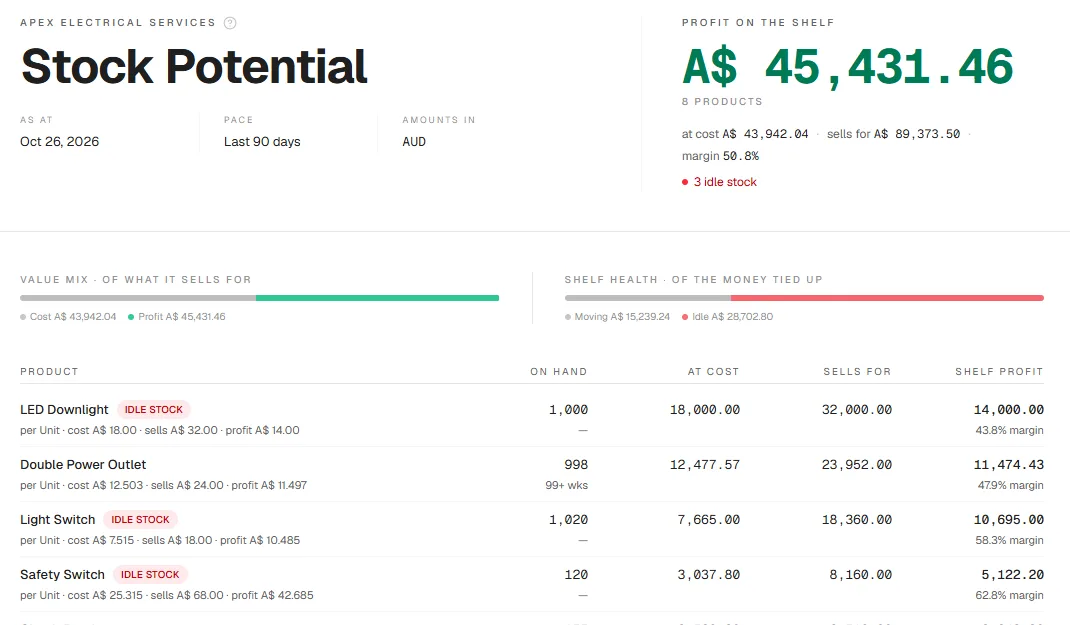
Stock Potential goes a step further. It shows the profit sitting on your shelf if everything sells at your current prices, and flags idle stock that hasn't moved in the last 90 days. In this demo, three slow lines hold most of the money tied up, which is exactly what you want to know before placing the next order.
Inventory is included on the free Essential plan, along with project cost tracking and contracts, so you can test it on your real stock before paying anything. The pricing page lists the monthly invoice allowance and team size for each plan. To bring your lists across, follow the import from a spreadsheet guide.
You can start free with Papertools, with no credit card.
What this won't fix
- A count that was wrong to begin with. The system starts from the opening stock you enter. Count the shelf properly on the cutover date.
- Stock that leaves without paperwork. Breakage, samples and items taken for your own use still need recording, or the count drifts.
- Complex warehousing. Multiple warehouses, bin locations and barcode picking are jobs for dedicated warehouse software.
- Your stock valuation method. How you value stock for tax can differ by country. Confirm it with your accountant.
Quick answers
Can I use free software for inventory and invoicing? Yes, many small businesses can. Check that inventory is included on the free plan and not only on a paid tier, and check the monthly invoice limit. In Papertools, inventory is part of the free Essential plan.
Do I need to enter all my stock at once? No. Start with one or two products, prove the count works, then move the rest.
What's the difference between stock value and stock potential? Stock value is what your stock cost you. Stock potential is the profit you'd make if it all sold at your current prices.
What happens to my old spreadsheet? Keep a dated, unchanged copy as your record of everything before the cutover. Don't keep updating it alongside the new system.
How often should I count stock? Do a spot count of a few products every month, and a full count at least once a year, usually at your financial year end.
Where to go next
- Proper Books Without Becoming a Bookkeeper: why stock, sales and costs belong in one set of books
- How to Write an Invoice (What to Include and What to Leave Off): getting the invoice itself right
- A Client Paid Before the Invoice Was Ready: How to Record It: handling deposits on bigger orders
- Import from a spreadsheet: the Help guide for bringing your lists across
- How to Track and Pay Supplier Bills Without a Spreadsheet (or Enterprise Software): from purchase order to paid, with approvals and supplier credit
- How to Switch Accounting Software Without Losing Your History: moving your books without starting from zero
This article is general information about how bookkeeping works, not tax, accounting or legal advice. Rules differ by country and business. Check with a qualified adviser before acting on anything here. Papertools gives you the figures; the decisions stay with you.