How to Invoice From Your Phone Before You Leave the Job
Stop typing up invoices at night. Set up saved items once, create the invoice on your phone on site, add job notes, and send it by WhatsApp or email before you leave the driveway.
The job's done, the customer's happy, and you're packing the van. The invoice? That's tonight's problem, along with the receipt book, the handwritten job sheets and the three other jobs from today. By the time you sit down, you're tired, the details are fuzzy and the invoice goes out two days late.
For mobile trades, from garage doors and plumbing to cleaning and mobile mechanics, that delay costs more than an evening. Invoices sent late get paid late, and paperwork that lives in the van gets lost.
This guide shows how to invoice from your phone before you leave the customer's driveway, and how to keep every job record easy to find later.
The short answer: Set up your usual parts, labour rate and callout fee as saved items once, at your desk. On site, create the invoice on your phone, pick the items, change the quantities and add a line of job notes. Send it by WhatsApp, text or email before you leave, while the customer is still standing there. Every invoice stays under the customer's name, so when they call about a repair next year, one search finds it.
Why the driveway is the best time to invoice
Three things are true at the end of a job that won't be true tonight:
- You remember exactly what you did. Which spring, which opener, how long it took, the extra bracket you didn't quote for. That memory fades fast.
- The customer is in front of you. They can check the invoice, ask a question and, often, pay on the spot. People pay fastest while the work is fresh and you're still in the driveway.
- Nothing piles up. One job, one invoice, done. No Sunday-night stack of job sheets.
Paper receipt books handle the first point but fail on the rest. The copy stays in the book, the book stays in the van, and finding a job from eight months ago means flicking through carbon copies.
Step 1: Set up your saved items once
The reason invoicing on site feels slow is typing. Fix that before you're ever on a driveway.
Sit down once and save the things you charge for most often:
- Your callout or service fee.
- Your labour rate, by the hour or by the job.
- Your common parts, each with a clear description and price.
- Standard jobs you price as a package, such as a service or an inspection.
Give each one a description a customer will understand. "Torsion spring replacement, pair, including labour" answers questions before they're asked. "Parts – $180" invites them.
In Papertools, these live in your products and services list. When you add a line to an invoice, start typing and pick from the list. The description, price and tax come with it. You only change the quantity.
Step 2: Create the invoice before you pack up
With saved items in place, an on-site invoice takes about a minute:
- Open your invoices and tap New invoice.
- Pick the customer, or add them if they're new. Their details stay saved for next time.
- Add your lines from saved items and adjust quantities.
- Add anything unusual as a one-off line, like the extra bracket.
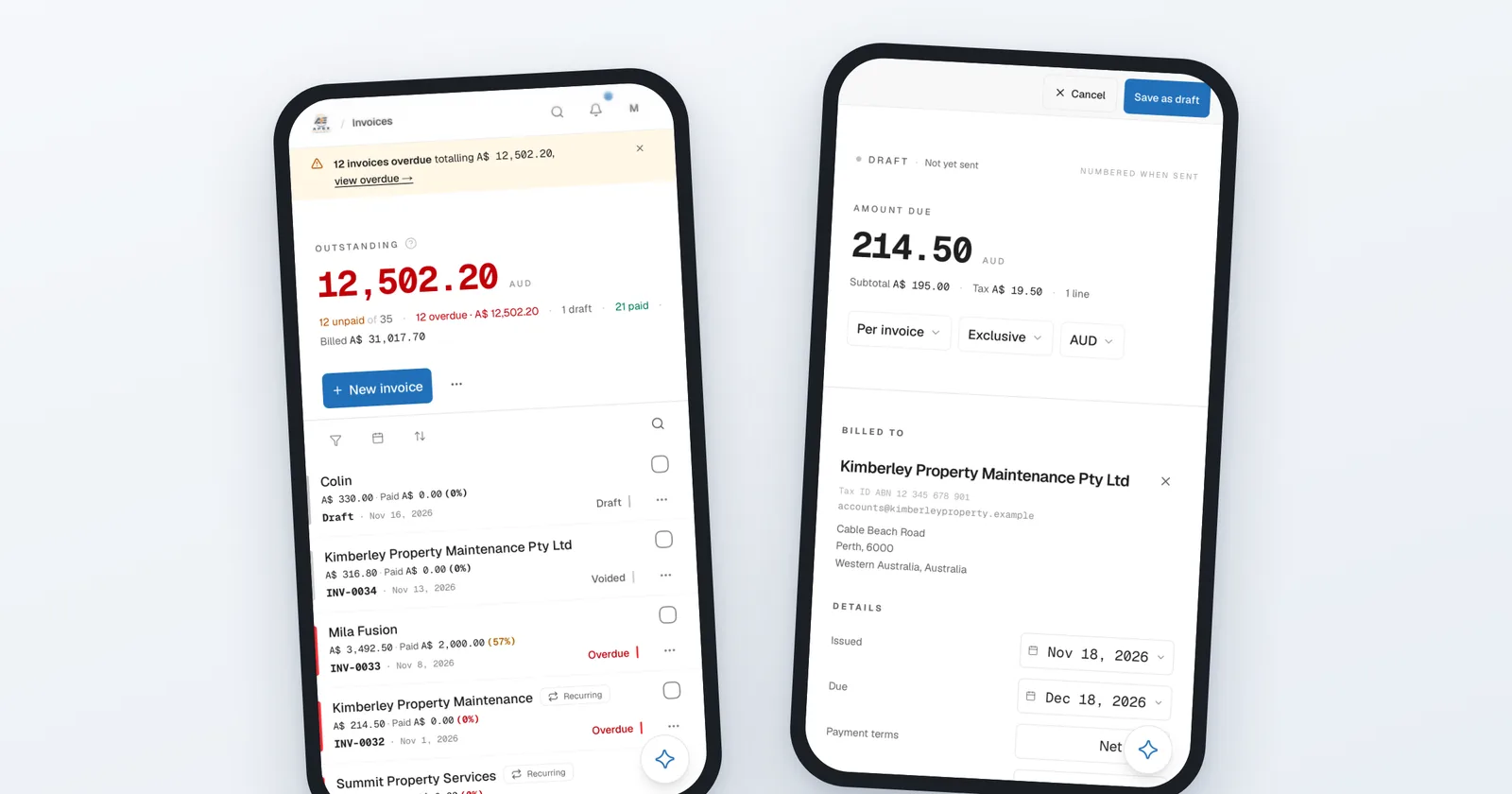
Check the total, the due date and the payment terms before you send. In Papertools, a new invoice stays a draft until you send it, and it only gets its invoice number when it's sent, so a half-finished invoice never leaves a gap in your numbering.
Step 3: Write the job notes into the invoice
This is the step most people skip, and it's what makes old jobs easy to find.
Use the line descriptions to record what you actually did, not just what you charged:
- What was replaced, and the model or serial number.
- Anything you noticed but didn't fix: "Left-hand cable fraying, recommend replacing within 6 months."
- Measurements or settings you'll want next time.
It takes thirty seconds on site. It saves a phone call, or a wasted trip, a year later. It also protects you: if a customer says something wasn't mentioned, it's on the invoice they received.
Step 4: Send it before you leave
Send the invoice on whatever the customer actually reads. For many people that's a text or WhatsApp, not email.
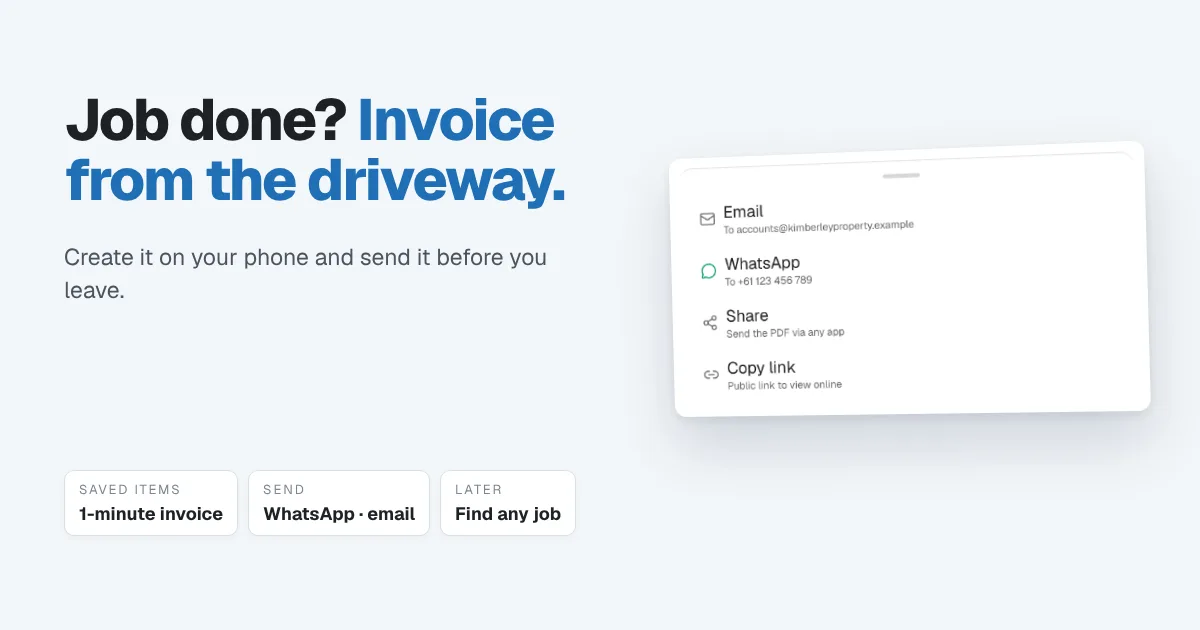
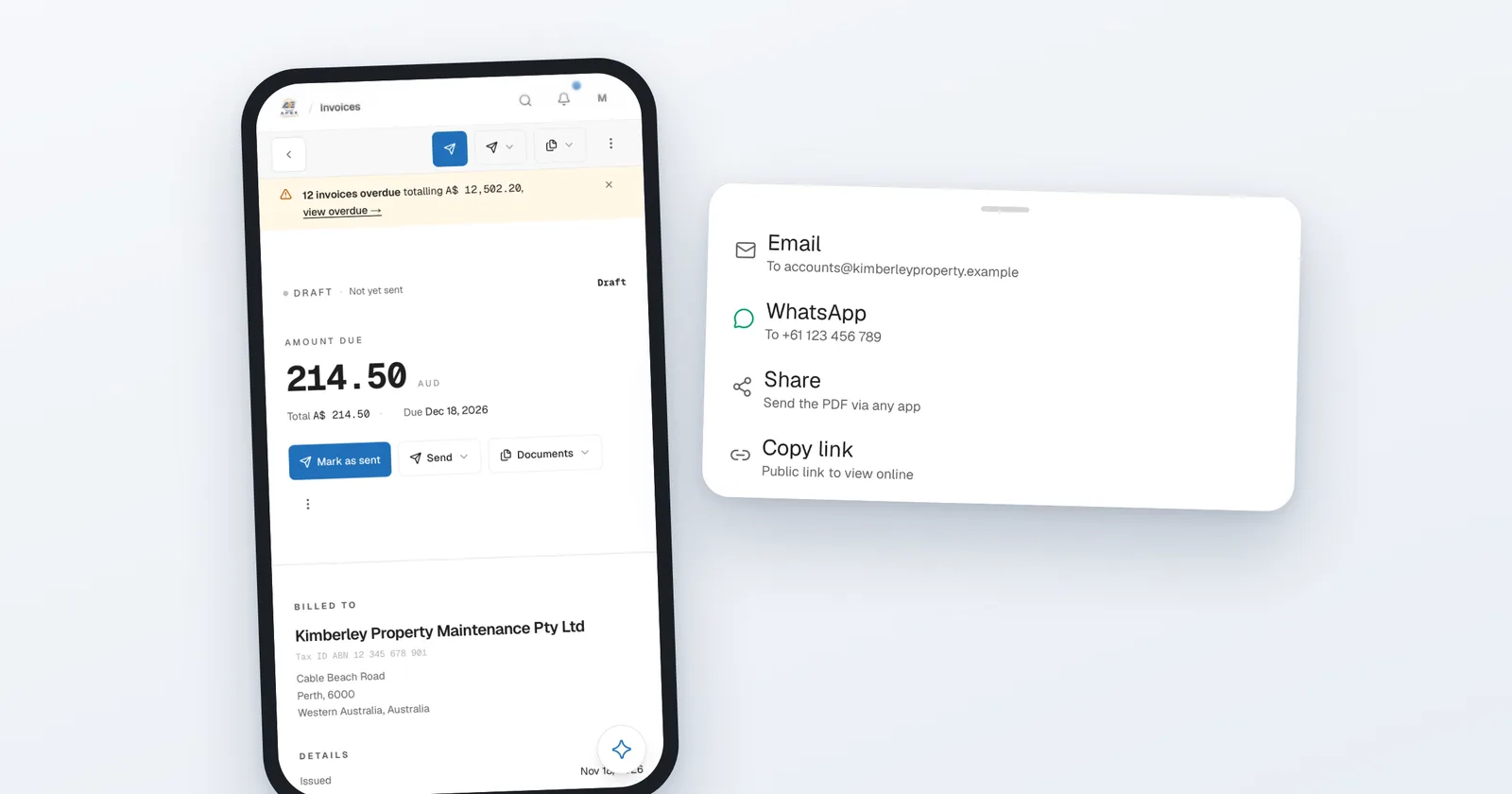
In Papertools, the Send menu on an invoice gives you four ways to get it to them:
- Email it with the PDF attached.
- WhatsApp it straight to their number.
- Share the PDF through any app on your phone.
- Copy a link to the invoice online, and paste it into a text.
The customer gets a clean, professional tax invoice with your logo, business details, the line items and how to pay. It looks the same whether you made it at a desk or on a driveway.
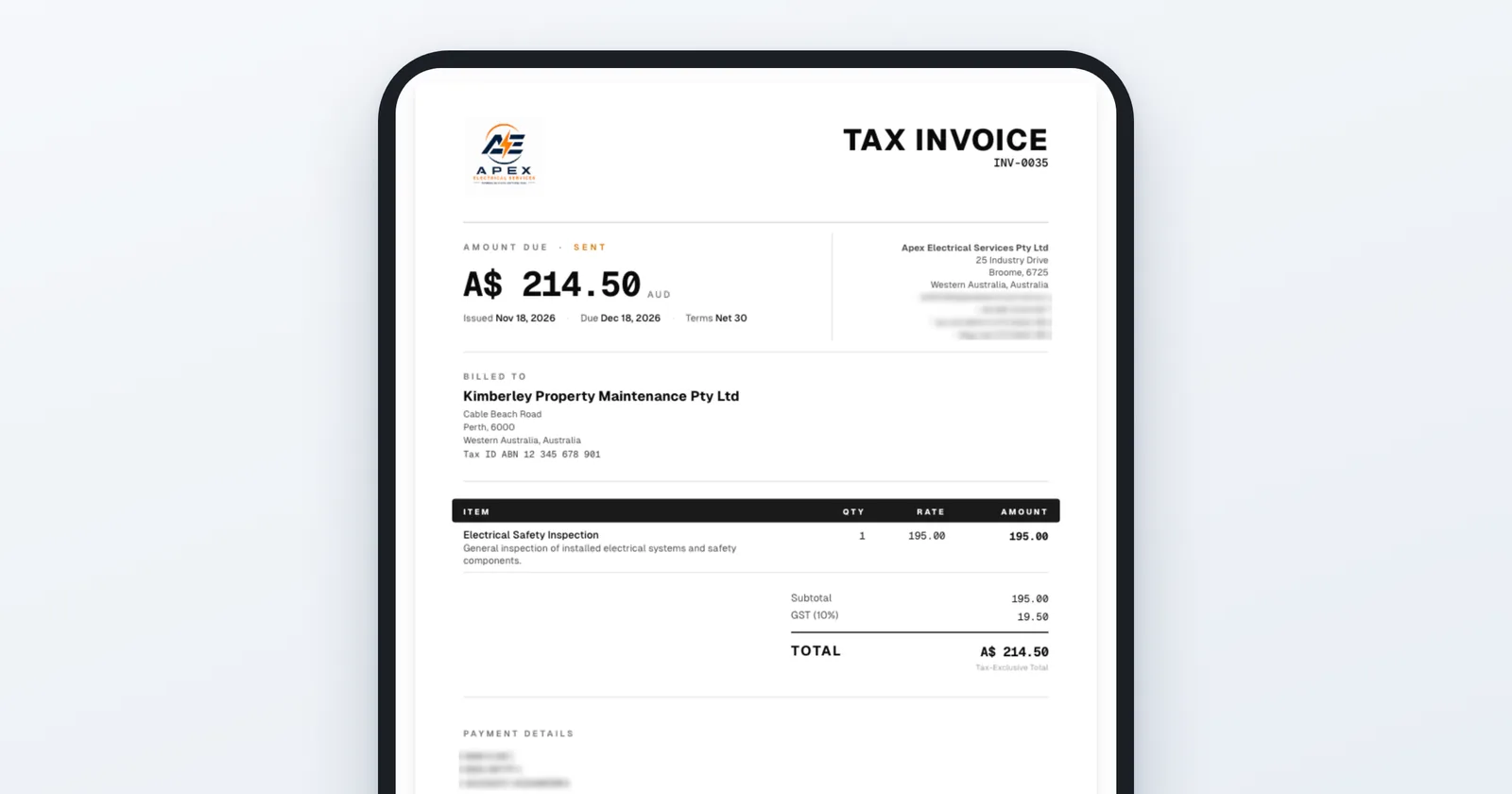
If they want to pay there and then, have your payment details on the invoice. If you take card payments online, the invoice can carry a pay link (in Papertools that's on the Business plan and up).
One honest note: sending needs a signal. If you often work where reception is patchy, create the invoice on site and send it as soon as you're back in range, which is still the same day rather than the same week.
Step 5: Find any job in seconds
When a customer calls about "that door you fixed last year", you shouldn't need to remember the date.
Because every invoice sits under the customer, search their name and every job you've done for them comes up, with the notes you wrote on site. The invoices list also shows at a glance what's paid, what's outstanding and what's overdue.
If an invoice does go overdue, you don't need to chase it from memory. Papertools can send automatic payment reminders on unpaid invoices, so the follow-up happens even when you're on the tools.
A paper receipt book vs invoicing from your phone
| Paper receipt book | Invoicing from your phone | |
|---|---|---|
| Time on site | Writing every line by hand | Pick saved items, change quantities |
| What the customer sees | Handwritten carbon copy | Professional tax invoice with your logo |
| Getting it to them | Hand over the copy | WhatsApp, text, email or link |
| Finding an old job | Flick through old books | Search the customer's name |
| Chasing payment | From memory | Overdue at a glance, automatic reminders |
| Your books | Typed up again later | Already recorded |
That last row matters more than it looks. An invoice made on your phone isn't a document you then copy into your bookkeeping. It is the record, so your income, what you're owed and your tax figures are already up to date.
Common questions
Can I invoice customers from my phone without a laptop? Yes. Papertools runs in your phone's browser, and you can add it to your home screen so it opens like an app. You can create, send and track invoices from your phone, and pick up the same records on a computer later.
What should a trade invoice include? Your business name and details, the customer's details, the date, a unique invoice number, a clear description of the work and parts, the price, any tax, the total, and how to pay. What makes it a valid tax invoice differs by country, so check the rules where you're registered. How to write an invoice covers the basics.
Is it better to send invoices by WhatsApp or email? Use whichever the customer reads. WhatsApp and text usually get seen faster. Email is better for businesses with an accounts team. You can send the same invoice either way.
What if I don't finish the job in one visit? Invoice when the work is done, or take a deposit first and invoice the balance at the end. Tracking partial payments across projects explains how to keep that straight.
Can I invoice from my phone on the free plan? Yes. The free plan includes invoices with a monthly allowance, plus unlimited estimates and expenses. See the pricing page for current limits.
Where to go next
- How to write an invoice — what every invoice needs, wherever you make it
- How to follow up on a quote — winning the job before you invoice it
- Invoice payment terms: Net 7, 15 or 30? — choosing a due date that gets you paid
- How to get clients to pay invoices on time — what to do after you hit send
- Job costing: the small leaks eating your margin — what each job really made once it's invoiced
This article is general information about how bookkeeping works, not tax, accounting or legal advice. Rules differ by country and business. Check with a qualified adviser before acting on anything here. Papertools gives you the figures; the decisions stay with you.